Google+

Type and Enter

Download KM Player for Play audio, video


KMPlayer screen
The KMPlayer is multipurpose media player which assists you to play every types of latest audio and video formats. These formats are Quick time video, Real media, MKV, AVI, DVD WMV, WAV, MP3, MP4, 3GP and many more. It permits you to capture or record in different modes while you play audio and video. KMPlayer has designed especially for windows version. In December 2008, KMPlayer was accepted by Pandora.tv Corporation and it launches freeware product for their users.
What is KMPlayer
It has an additional characteristic to play unfinished or broken AVI file, protected media files, you can compress audio folder in album with zip or rar format openly. KMPlayer contains all latest codes default but you can put in newest codes also without any troubles. This media player has an enormous series of settings that support you modify your entertainment experience in modern styles.
KM Player offers users to watch various videos simultaneously. Suppose if you don’t have time to watch four movies in single night, KMPlayer helps you to watch them wholly together.
KMPlayer+
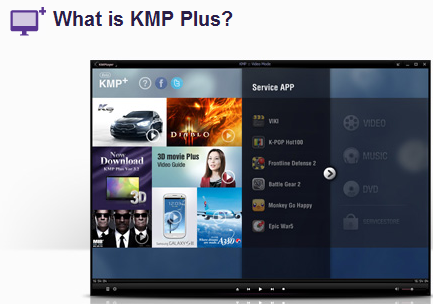
what is KMP Plus
KMP + is update version of KM Player. KMP+ will give special tasks for their users. It makes capable to users for simply organize and watch their video, music and DVD from computer in entertainment structure and with more functions. Foregoing KMPlayer only offers general functions where users were capable to watch videos or listen to music.
The first edition of KMPlayer+ was released in 2011. It is capable to establish link among KMPlayer users and social play service to watch live streaming video and listen music simultaneously.
Read more about KMhowto-connect.comPlayer 
Read More »

Facebook Samsung Application


Facebook, leading the list of social networking sites, is lone place of most of the netizen to express their feelings and putting thoughts on certain issue. Global exposure of Facebook attracts people to come & join the deck. People are never in mood to miss any session with Facebook. Easily accessibility makes Facebook more searchable rather than closest rival. Apart of Web Facebook is made available for mobile devices. Users of smartphones are using designated apps to access Facebook quite easily. As pay back, Facebook has produced a page, which has all about latest information of Samsung Application.  The particular post guides you to know all such Samsung applications which has to display Facebook.
As you know phones are about life long devices. It enables you to connect with whole world. It entertains by buzzing music, movie and game. Mobile service provider 'Samsung' has all these applications  in their handset. Samsung applications include apps named as Educational Study Buddy, Life-Line, Wine Find, Street Note and Balance Check. And after every bit of spending time inclusion of new apps are done.
Read More »

How To Format Computer and install window XP ?

When our computer or laptop plugged DVD –writer is not working and windows XP have corrupted at this time. Then important and effective solution quickly about same problem to make USB bootable for Windows XP Install. Through it we can install and format XP without any hurdle.
Actually, we know very well that window XP Installation CD known as  bootable


When you feel Windows XP is not accessing in proper mode due to invalid system configuration, virus attack, loss of system file, computer speed slow than actual speed etc. Then you want to format computer drive and re-install windows XP. At this time you will have to kind attention about important things and follow instructions before format XP.
Read More »

How To Map Network Drive in Windows 7


Windows 7 homegroup feature is performing role as big advantage. sharing of drives in networking is possible. Suppose you want to direct access any particular folder of another computers then special feature Map Network Drive is used in network homegroup.


Read More »

How to Remove Usage History of Windows 8 Apps?


Windows 8 Task Manager is a truly great tool which helps you to manage your startup services. It also carries on history of the resources that was being used by your Windows 8 Metro apps.
First Method- 
Remove Apps Usage History in Windows 8 Through Task Manager
If you want to wipe out long time stored history of apps usage data then launch windows 8 Task Manager at first.
Read More »

5 Brand New Windows 8 Apps for Kids...


Computer has a lot things to offers its users be either adult or kids. Adults uses computer for completing  assignments and other activity leading to entertainment while kids are seen to engage in playing Game as well as Studying Tutorials on their computers. With the advent of Windows 8 and its in-build apps, users have many more options to engage himself / herself at their computer system. These apps include with Puzzles, Games, Study assistance etc. Now, I am going to discuss brand new Apps of Windows 8 which made specially for entertaining Kids.
Read More »

How To Make Wi-Fi (Ad-hoc) connection in window 7

We will discuss how to make connection among two computer or laptop from Wi-Fi or wireless in windows 7. Generally this is known also ad hoc wireless network.

At first, a user will have to understand about need hardware equipment for establishing wireless connection between two computers or laptop.

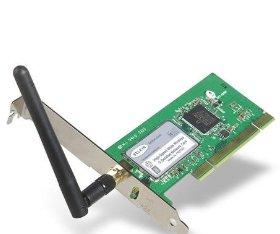
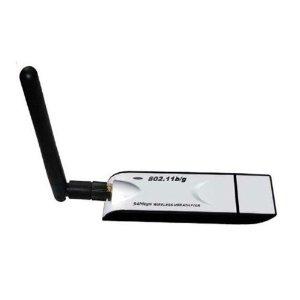
I like a nice post which was related to WiFi in windows 8. You may get tips to make WiFi connection from here. If user has decided to connect two desktop PC through wireless( ad-hoc) connection without using wireless access point, firstly arrange two WiFi support LAN card from market. Actually desktop PC motherboard equipped with Ethernet LAN card (referred as NIC Card) always. User may purchase any following company manufacturer ( Belkin, TP-Link, Netgear, Edimax, Acetec, Linksys, Broadcom etc) wireless card. After purchasing wireless card plug it in computer motherboard PCI slot properly and install supporting software and hardware drivers from CD disk.
WIFI LAN CARDWIFI LAN CARD-1WIFI USB CARD
    If users have two laptops or notebooks then no need of purchasing external WiFi cards because laptops are plugged already internal WiFi LAN card.
 Remarks:-

Both Desktop PC and laptop should be installed WiFi card hardware driver in better modes. For knowing WiFi card is install proper then may check following stages.

How can you check WiFi card is install properly in computer or laptop.


Method-1
  • Right click on my computer icon from desktop, select Manage option.
Computer Management Open

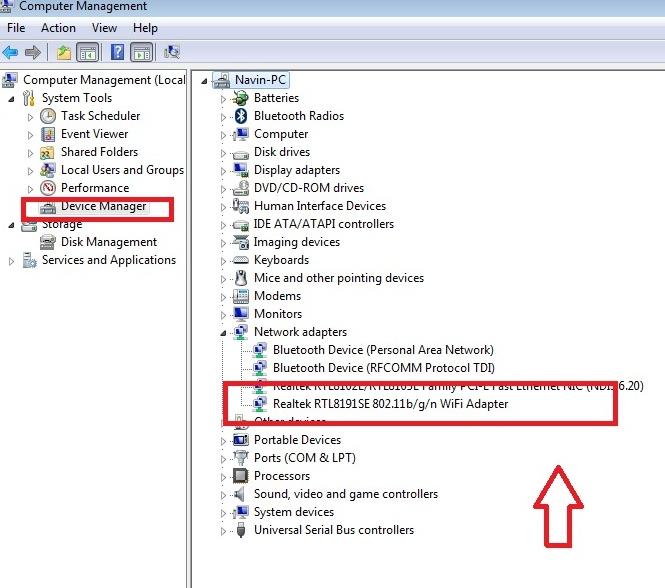
  • Choose Device Manager  in left tab, then list of plugged hardware peripherals will display in right side.
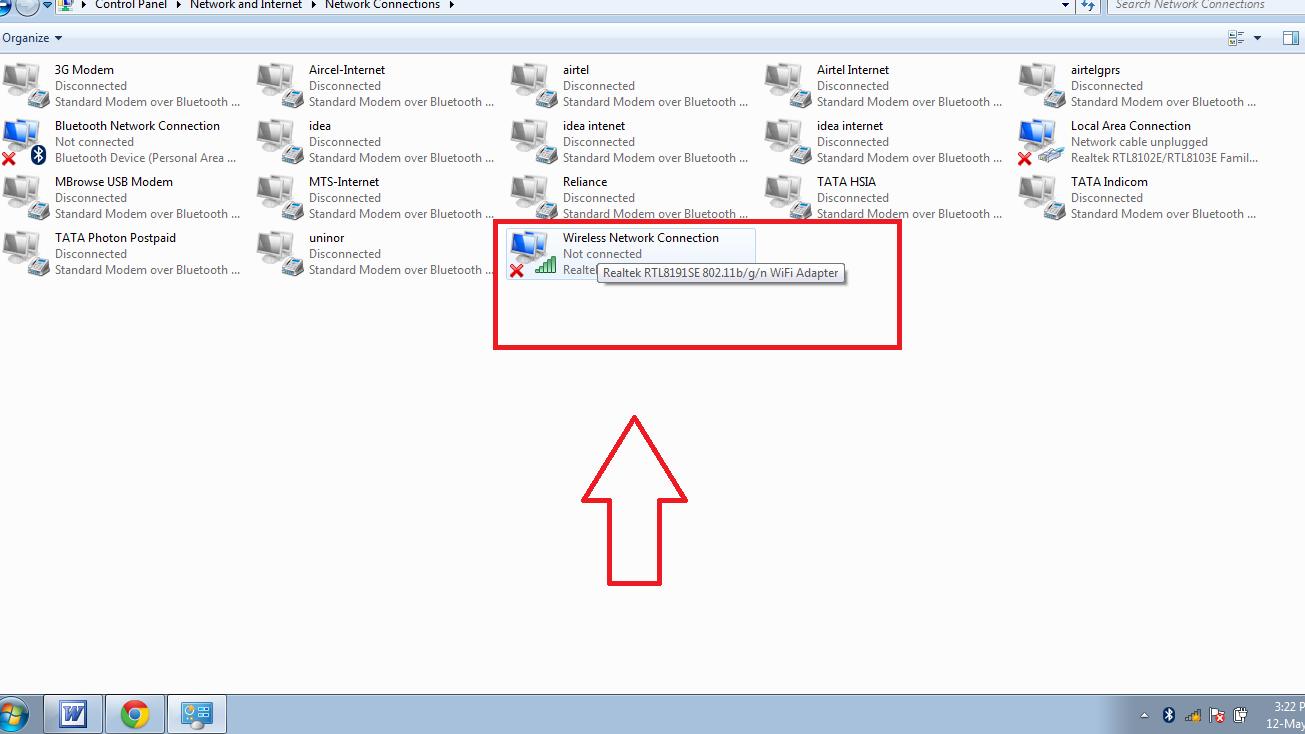
  • click on Network adapters button. Find install WiFi card – Realtek RTL8191SE 802.11b/g/n WiFi Adapter
Device Manager
Method- 2
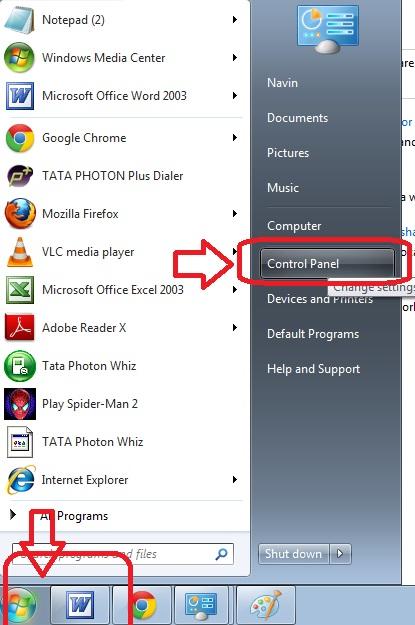
  • Click on start button from desktop, select Control panel option.
Open Control Panel
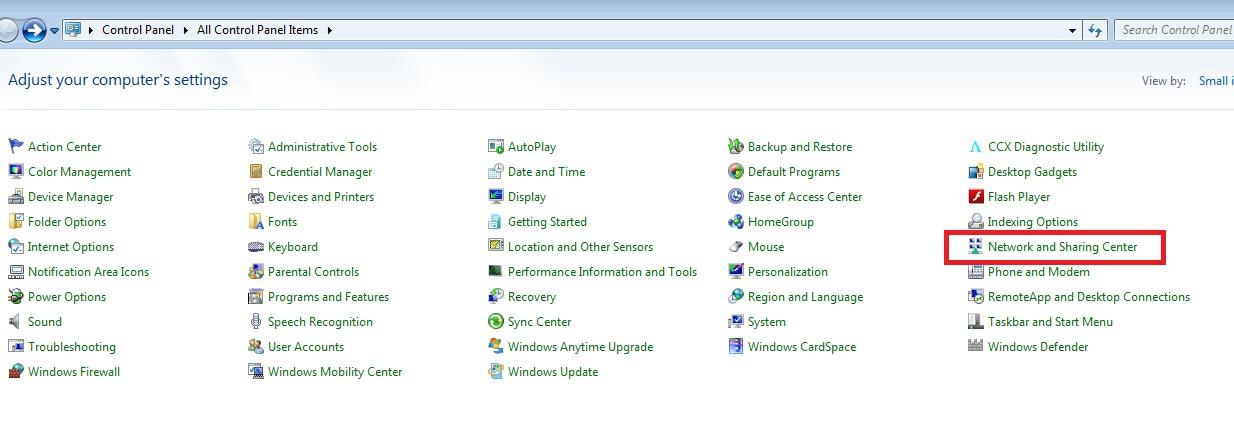
  • Find Network and Sharing Center button.
Network and Sharing Open
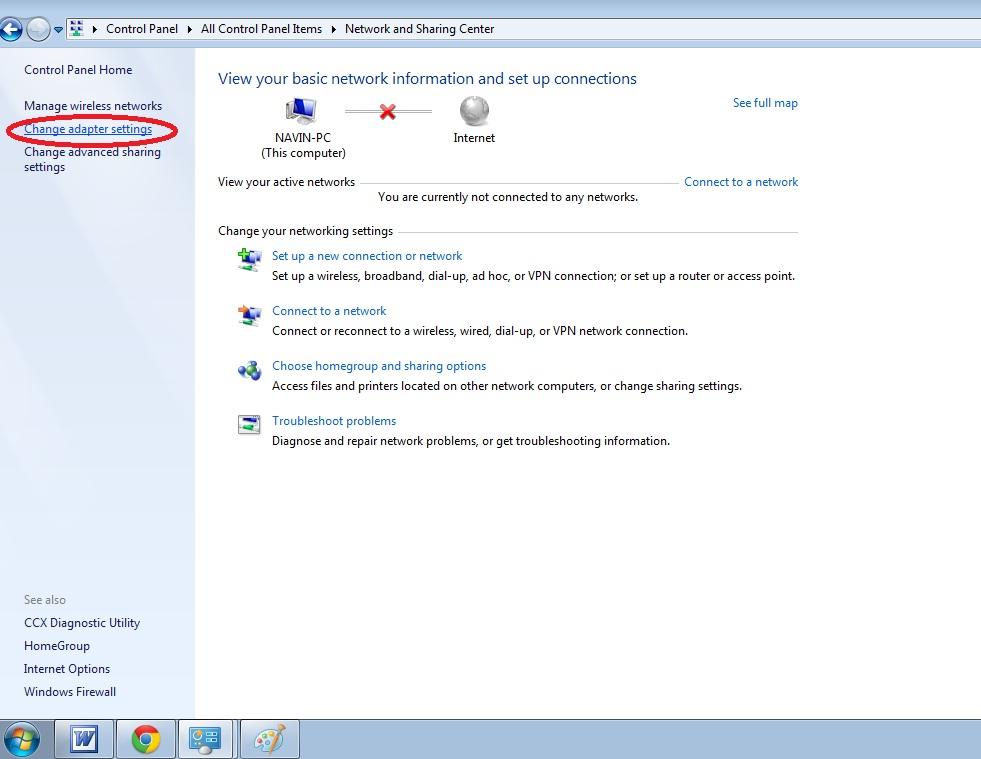
  •  click on change adapter setting from left tab.
Find Change Adapter setting
  • in new window, find WiFi card Icon in list view.
View WIFI card in computer


Steps for establishing two computer or laptop through Wi-fi.

At first, a user will have to configure computer name and assign same workgroup name of both computer or laptop.

  • First computer name- Navin –PC 
  • Second computer name- Abhishek-PC
To configure computer name and workgroup name of both computer / laptop  how?
First computer - - Navin –PC
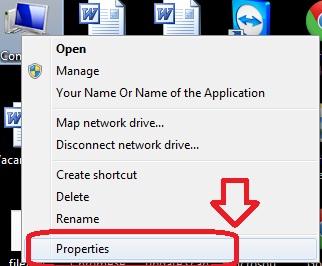
  • Right click on computer icon from desktop, select Properties.
Computer Properties
  • open computer properties window, click  change setting in right side.
Workgroup Setting
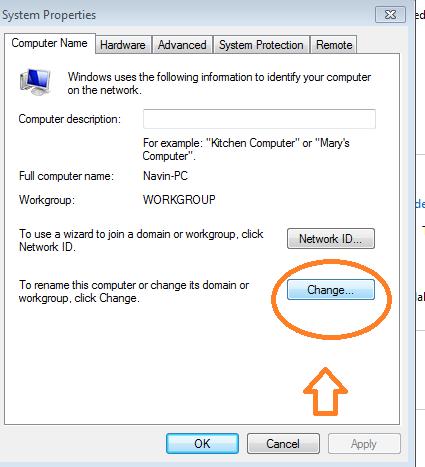
  • Now open system properties window then click on change option.
System Properties
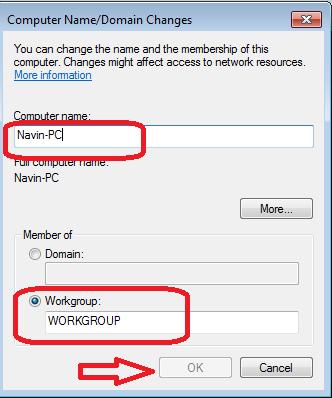
  • Now open Computer Name and domain changes window, here type your optional computer name in box – NAVIN-PC and select workgroup tab – Set WORKGROUP.  At last, click on OK button.
Domain Changes

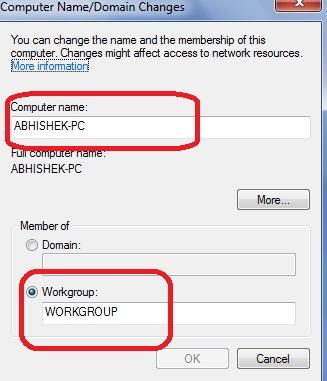
Second Computer – ABHISHEK-PC
user will configure computer name and set work group in second computer or laptop by above-given procedures.

Computer name
After, configure computer name and workgroup of both PC or laptop now user is ready to set up WiFi connection  in first computer (NAVIN-PC)-
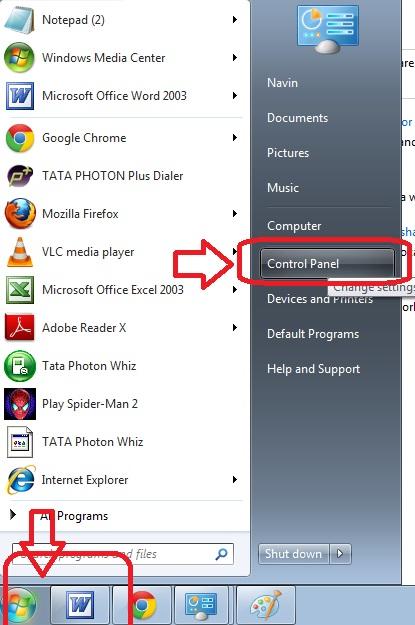
  • Click on Start button, Open  Control panel window
Find Control Panel window
  • Now click on Network and Sharing Center  window
Network and Sharing Menu
  • Here choose option – set up a new...............  network.
Setup New network Connection Network
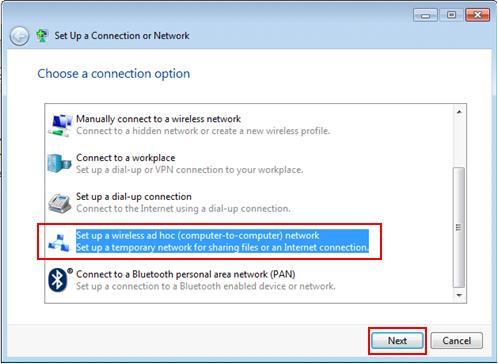
  • select set up a wireless ad hoc ..............  network and click on Next Button.
Setup wirelss Adhoc mode
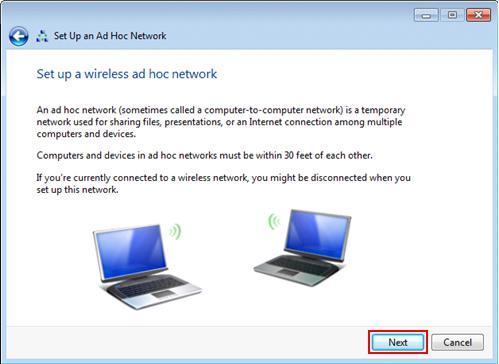
  • In new window ( Set up a Wireless ad hoc network) click  Next button.
Wireless Setup in adhoc mode Process
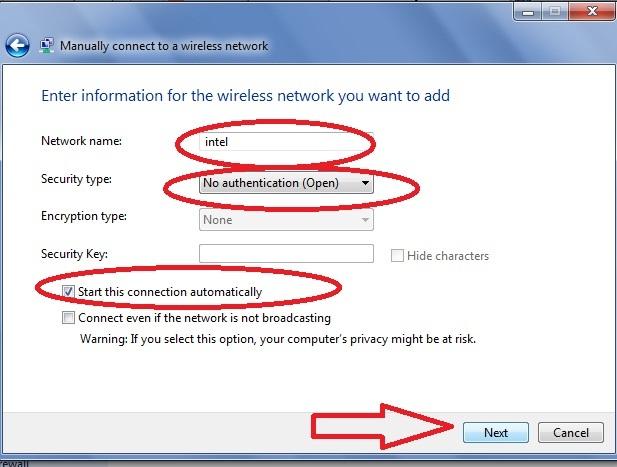
  • open new window set up a wireless ad hoc network.  Here user has to select manual to setup ad-hoc connection as follow:
          1.       Network name -     Intel or anything according to your opinion
         2.       Security Type –        No authentication(Open) 
          3.      Security Key -            leave blank   
  • check the box- Start the Connection automatically. click Next.
Type information in wifi setup
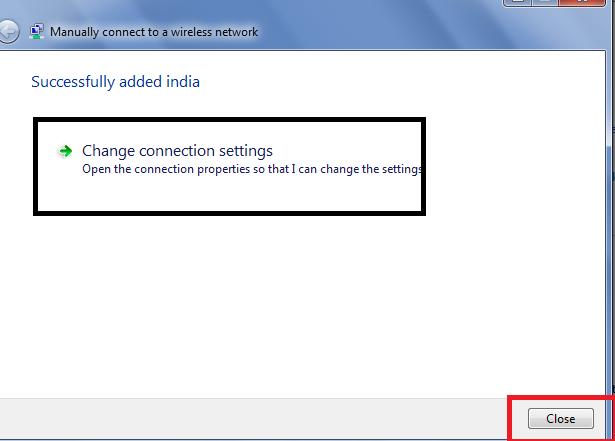
  •  select Close button in next window.
  • Restart  computer.
Change Connection Setting

In second computer, (ABHISHEK-PC) find active Intel wireless network.
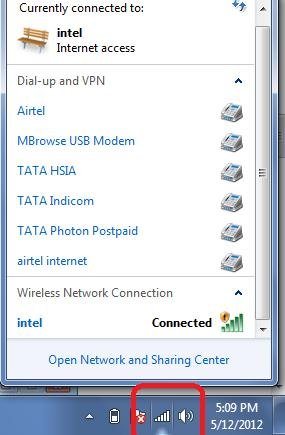
  • Go to taskbar and click network icon button. When it is displaying drop down list click  connect button.
  • After successful connection will establish among two computer or laptop,  it will show in taskbar as below image.
 Find Network and Sharing Option in Taskbar
Check wireless network connection status?
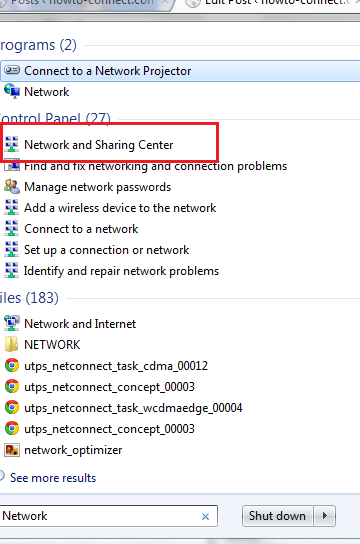
  • Go to start button search box and type "Network". select Network and Sharing Center link.
Network and Sharing Link
  •  In new window, click on wireless network Connection link
. show connect WIFI Connection
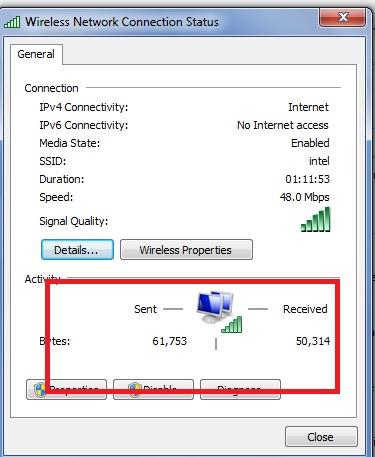
  •  you will find Wireless network Connection Status tab.
Wireless Connection Status
How to enable Internet Connection Sharing in second computer or laptop via Wireless connection automatically.
If user want to make enable  internet connection sharing in second computer through wireless network. Because first computer has connected from internet already via Wifi broadband modem or USB modem automatically.
  • Open Network and Sharing Center option window, click on Change adapter setting.
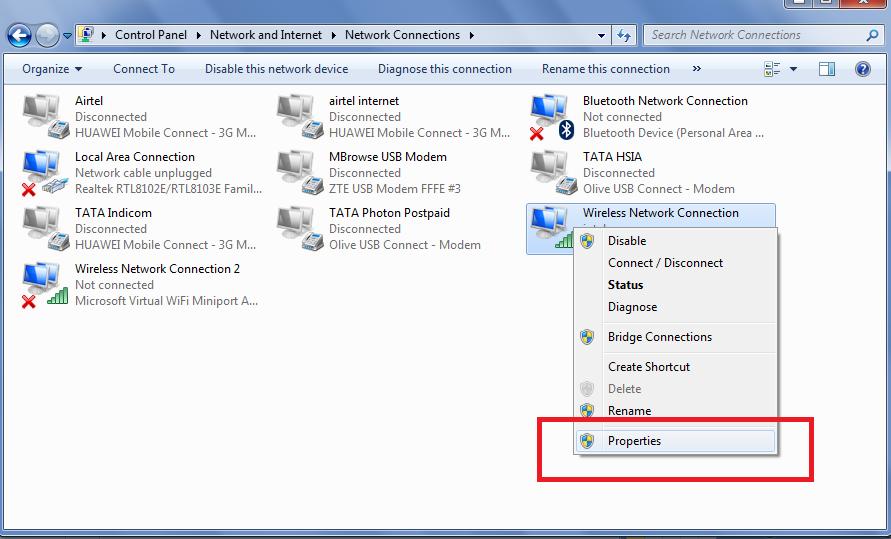
  • In new window ( Network connections) select  properties of  active wireless network card and open it.
WIFI adapter Properties
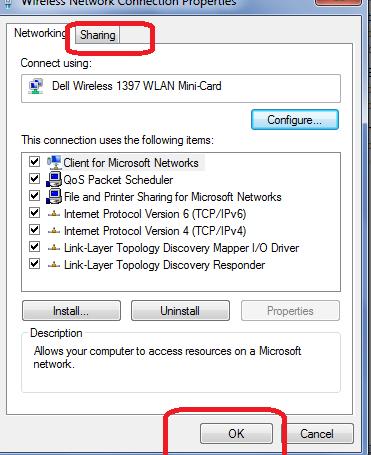
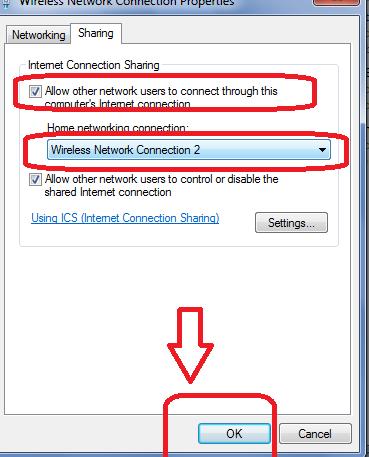
  • Click on  sharing tab, check the box – Allow Other network Users ........................connection and set wireless networking connection in drop down . choose OK button.
Find Sharing tab
Internet sharing in wifi
After applying procedure to enable Internet Connection Sharing in second computer under wireless network, Internet will activate automatically.
Read More »

How to Create System Image and Make Restore in Windows 7


windows 7 logo
Create Backup system Image in windows 7 - 
  • Go to Start button and type Backup and Restore. 
  • from search lists, click on Backup and Restore link.
Read More »

How To Disable Home Group Feature in Windows 7


Windows 7  inbuilt  Home Group features are used to share files and printers from another windows 7 computers in network modes (wireless or Ethernet). But sometimes if you like to make disable  homegroup feature from network modes then how it is possible ?
Read More »

How to Share Internet Through Wireless USB Modem


Present time, Internet  has recognized useful symbol among internet users. internet connection has divided in many structures - Broadband , WI-FI , Leased line, wireless USB modem ( Data card or USB Dongle ). But  most popular internet modes are being used via wireless USB modem (USB data Card) at a time among maximum places.  Different variety of wireless USB modem for accessing internet  - Tata Photon, Reliance data card, BSNL EV-DO USB dongle, 3G data card, etc with reliable features.
Read More »